Instant Setup
Quick & Easy Setup Starts Here
To access the setup wizard, ensure that both your computer and Netgear WiFi extender are powered on. Next, open a web browser and enter “www.mywifiext.com” in the address bar. You’ll be prompted to log in with a username and password.
Once logged in, simply follow the on-screen instructions to complete the setup or manage your existing extender. The setup wizard will help you connect the extender to your main WiFi network and adjust the settings according to your preferences.
In short, “www.mywifiext.com” offers a quick and user-friendly way to install or configure your Netgear WiFi extender, providing seamless and reliable WiFi coverage throughout your home or office.
Step 1: Create Account
Need Help Accessing mywifiext.com?
Satisfied Customers
Many desktop Wifi packages and web page editors now use Lorem Ipsum budgets
99% First Call Resolution
We resolve 99% of customer queries on the very first call.
24/7 Support
Our knowledgeable and dedicated support team is available 24/7 to assist you with any issues.
What is mywifiext.com Used For?
www.mywifiext.com is the official web-based user interface for setting up and managing your Netgear WiFi Range Extender. It's commonly used during the initial configuration or troubleshooting process.
However, users sometimes encounter errors while trying to access the setup page. In this section, we’ll guide you on how to properly access www.mywifiext.com and set up your extender.
Extender Setup Now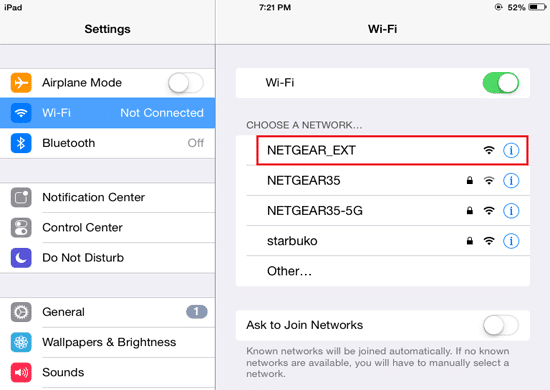
How to Log In to mywifiext.com?
To log in to mywifiext.com, you’ll need a wireless device like a laptop, smartphone, or tablet.
Steps to login into mywifiext.com:
- 1. Plug in your Netgear WiFi extender and power it on.
- 2. Connect your device to the extender’s default WiFi network.
- 3. Open a web browser and go to mywifiext.com.
- 4. If the page doesn’t load, try entering 192.168.1.250 in the address bar.
- 5. The Netgear Genie setup screen will appear, asking for your login credentials.
- 6. Enter your login details to configure or manage your extender settings.
Business Mesh WiFi Systems
Experience faster speeds and wider coverage with secure WiFi built to support all your connected devices—no slowdowns, just seamless performance.
Extender Setup Now
How to Set Up mywifiext.com (Netgear Nighthawk Extender)
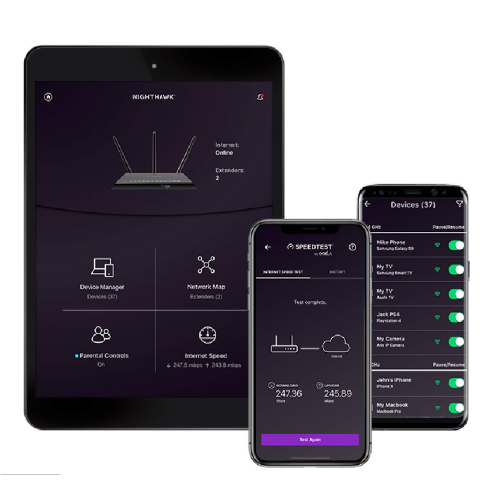
mywifiext.com is the setup portal for Netgear Nighthawk WiFi extenders, accessible specifically through Mac or iOS devices. If you're using one of these, follow the steps below carefully to complete your extender installation.
Steps to Set Up mywifiext.com:
1. Power on your Nighthawk WiFi Extender Wait until the power LED turns solid green.
2. Connect a DeviceUse a Mac computer, iPhone, or iPad to connect to the extender’s default WiFi network.
3. Launch a Web Browser Open Safari or any web browser and go to: mywifiext.com
4. Verify Network Connection Ensure your device stays connected to the Nighthawk extender network during setup.
5. Follow On-Screen Instructions The setup wizard will guide you through the configuration process. Choose your existing WiFi network and extend it.
6. Reposition the Extender Once setup is complete, unplug and move the extender to your preferred location. Make sure it's within range of your main router.
Frequently Asked Questions
- Connectivity Issues: Ensure your device (laptop, smartphone, or tablet) is connected to the Netgear extender’s network, either through Wi-Fi or an Ethernet cable.
- Incorrect Web Address: Double-check the URL you’re entering. For macOS and iOS users, the correct address is: mywifiext.com
- Browser Cache Problems: Clear your browser’s cache and cookies. Cached data can sometimes prevent pages from loading correctly.
- Extender Not Powered On: Verify that your extender is powered on and the LED indicators show it's functioning properly.
- Factory Reset (If Needed): If none of the above steps work, reset your extender to factory settings and go through the setup process again.
- Log in to your extender via www.mywifiext.com
- Or, check the list of connected devices in your main router’s admin settings to locate the extender's assigned IP.
- Connect your computer or mobile device to the extender via Wi-Fi or Ethernet.
- Open a browser and go to www.mywifiext.com.
- Log in with your extender’s username and password.
- Navigate to Settings > Wireless.
- Under the General section, look for the WiFi Password:
- If it says “Same as existing network password”, it's using your main router’s password.
- If it says “Use a different password”, check the Network Key or Security Type for the password details.
- Ensure your device is connected to the extender, either wirelessly or via an Ethernet cable.
- Double-check the address you’re entering: use http://www.mywifiext.com.
- If it still doesn’t load, try accessing http://192.168.1.250 (the default IP).
- If all else fails, reset the extender and try setup again.